

- Audio Description
How to Create Audio Description for YouTube Videos
•

While once only available for select creators, YouTube Audio Description is now available for any creator that has access to multi-language audio! This feature allows viewers to easily toggle the descriptive audio on and off.
Previously, if a viewer wanted to access audio description for a YouTube video, they would need to access a separate version of the video that was audio-described.
Why is this important?
YouTube currently has 2.53 billion active users, with 122 million people using the platform every day.
71% of people with disabilities leave a website immediately if it’s not accessible.
You don’t have to be a mathematician to understand these stats and their implications. If you want your YouTube videos to reach their full potential, you need to make them accessible with captions and audio description.
If you want your content to reach the millions of people who are blind or have low vision, keep reading to learn how to create and add audio description to YouTube videos.
Create Audio Description for YouTube Videos
3Play Media offers Audio Description services that combine AI with expert human review to generate high-quality descriptions at a fraction of the cost of traditional vendors.
How to Add Audio Description to a YouTube Video
Once you have your audio description file, you can add it to your video using these steps:
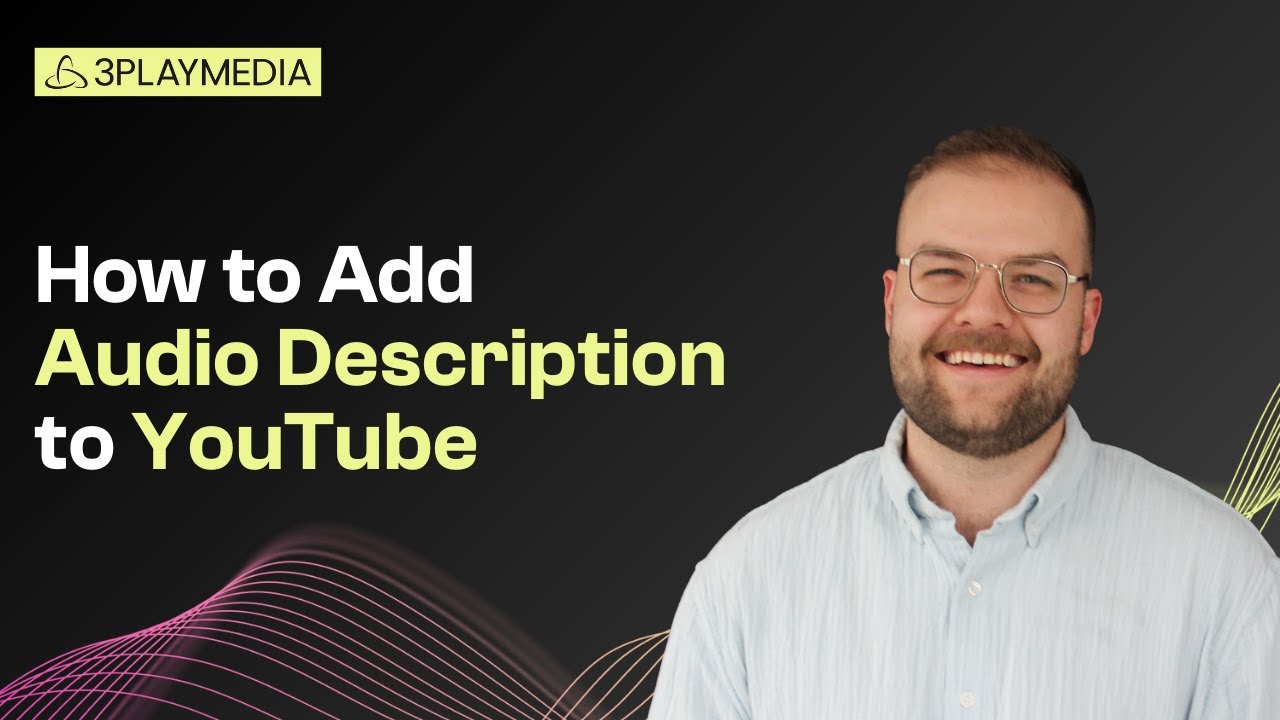
Step 1: Sign in to YouTube Studio on your computer.
Step 2: From the left menu, select Languages.
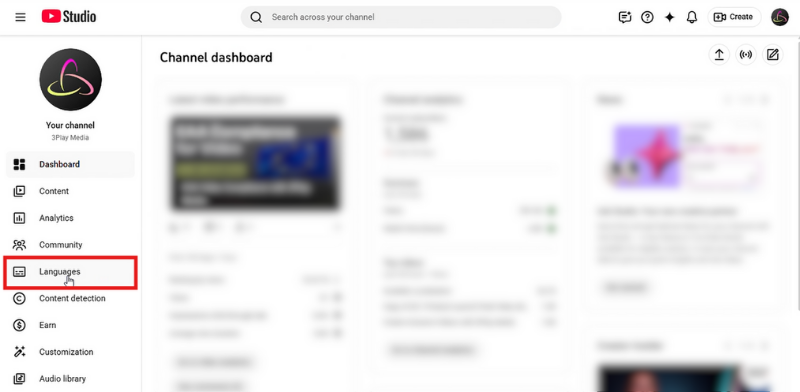
Step 3: Click the video that you’d like to edit.
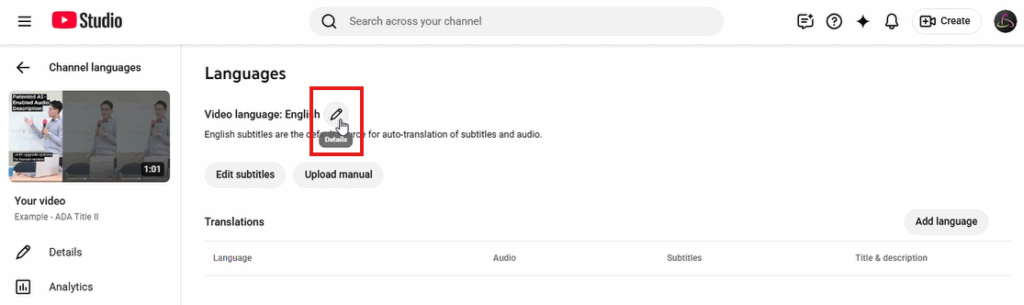
Step 4: Click the pencil icon (i.e., Details) under Languages.
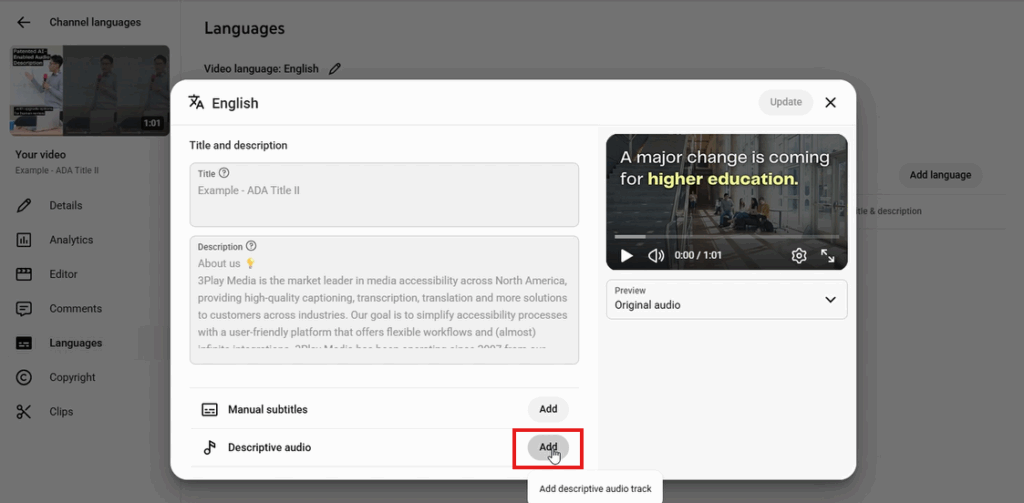
Step 5: At the bottom, to the right of Descriptive Audio, click Add.
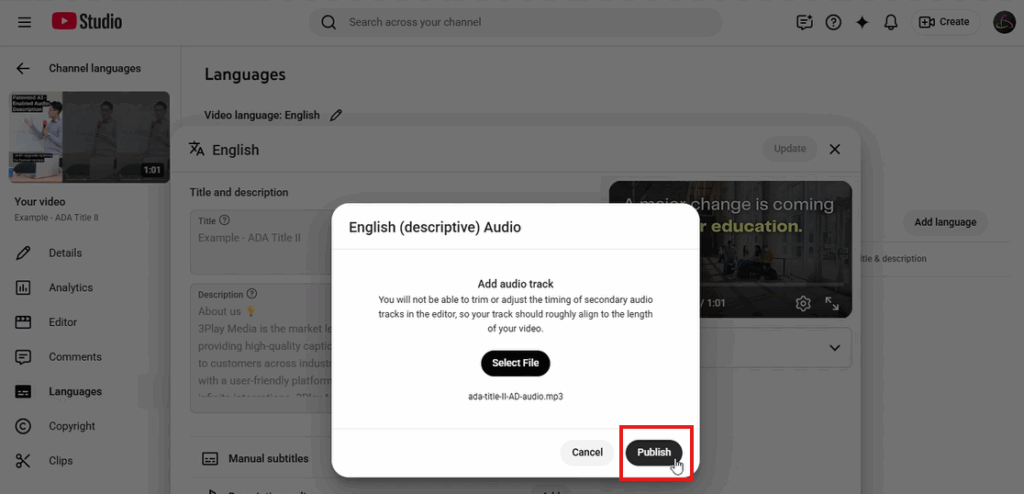
Step 6: Select the audio file containing the descriptive audio track. Files must be in a supported audio-only file format and roughly the same length as your video.
Step 7: Once the file is selected, click Publish.
Step 8: Click Update.
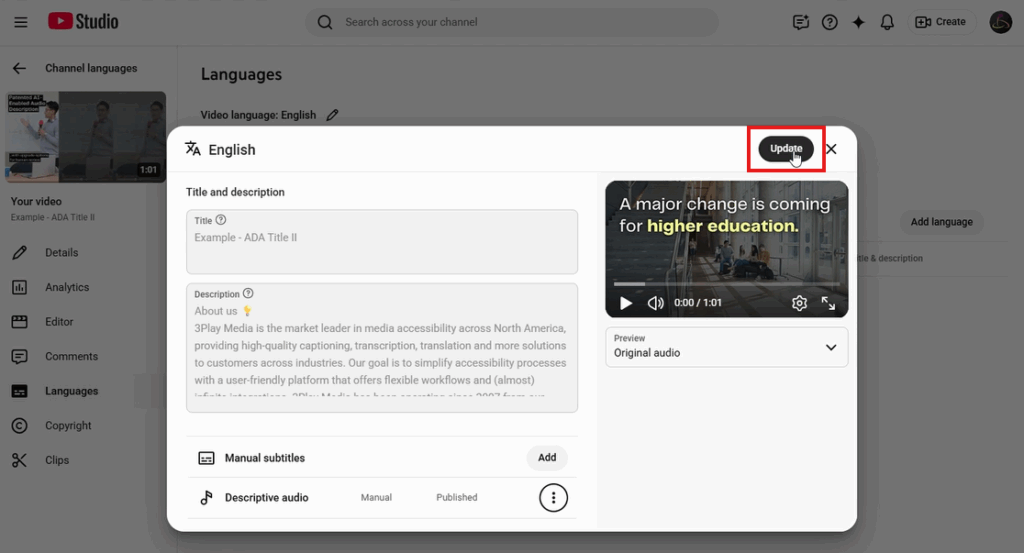
Step 9: Wait for descriptive audio to process. Then your audio description will be ready to toggle on and off!
How to Turn On Audio Description On YouTube
When viewing a video, turning on YouTube audio description can feel a little unintuitive, but this is how it’s done:
Step 1: Click the gear icon (i.e., Settings).
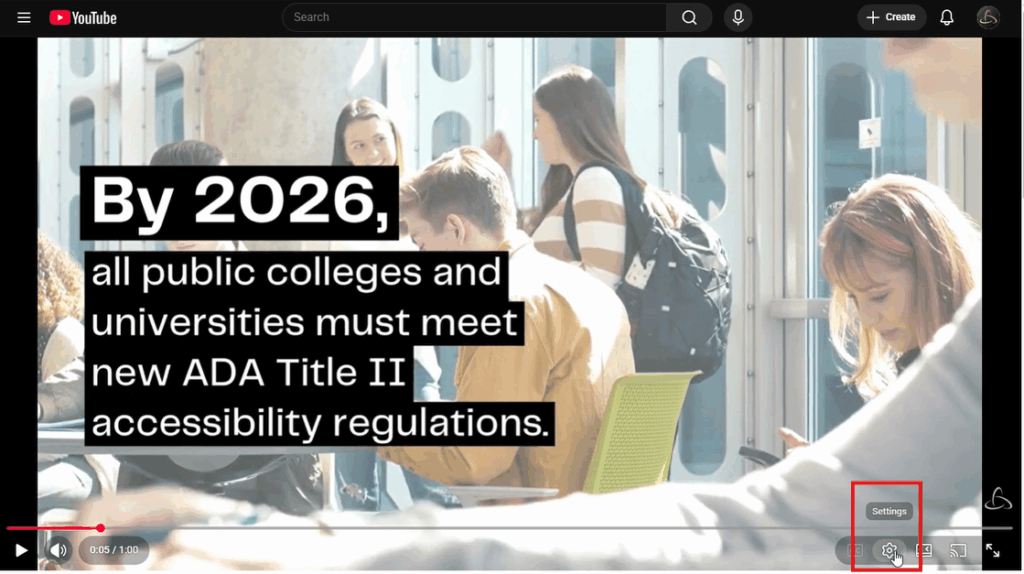
Step 2: Click Audio track to view language and descriptive audio options.
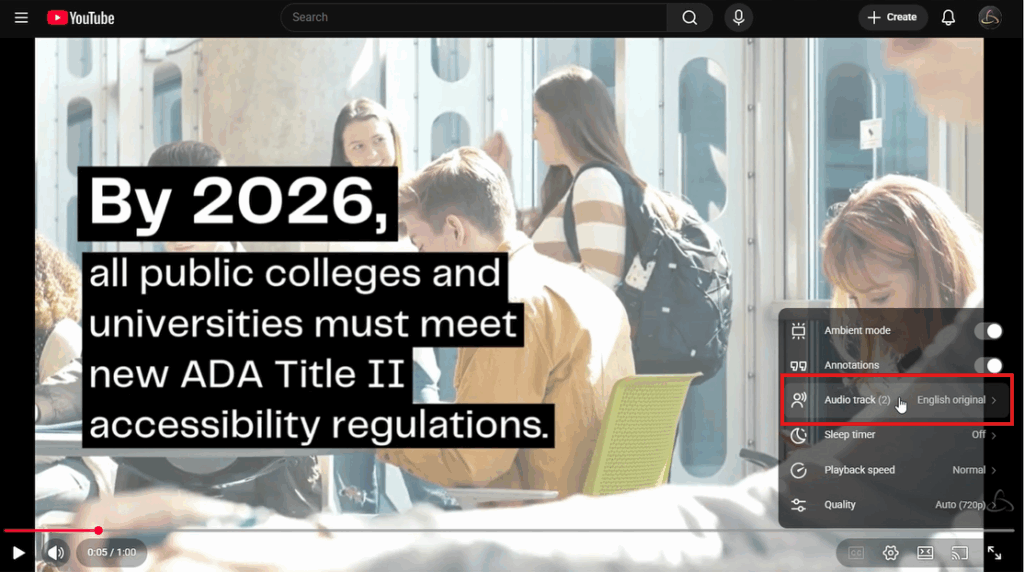
Step 3: Click English descriptive (or whichever language you would like descriptive audio for).
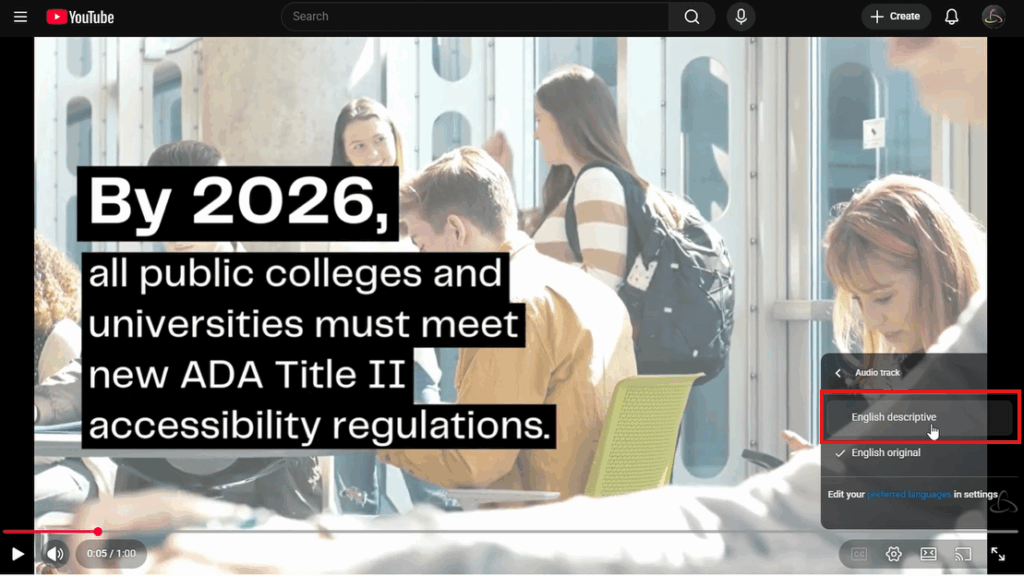
And with that, you can now watch the video while it plays the track with audio description!
How to Create Audio Description for YouTube Videos
The two most common ways to create audio descriptions for YouTube videos are to create descriptions manually or use an audio description vendor.
Going the DIY route will be less expensive, but it is a far more labor- and time-intensive process. On the flip side, you’re guaranteed high-quality, accurate descriptions when you go through a professional audio description vendor like 3Play Media.
Our professional describers watch your video and utilize technology and human editing to create clear, accurate descriptions that follow the DCMP guidelines. The descriptions, using synthesized speech or professional voice actors, are placed using the existing timecodes from your caption file so that they don’t disrupt the viewer from the original audio track.
Outsourcing to 3Play Media
Begin by logging into/creating your 3Play Media account.
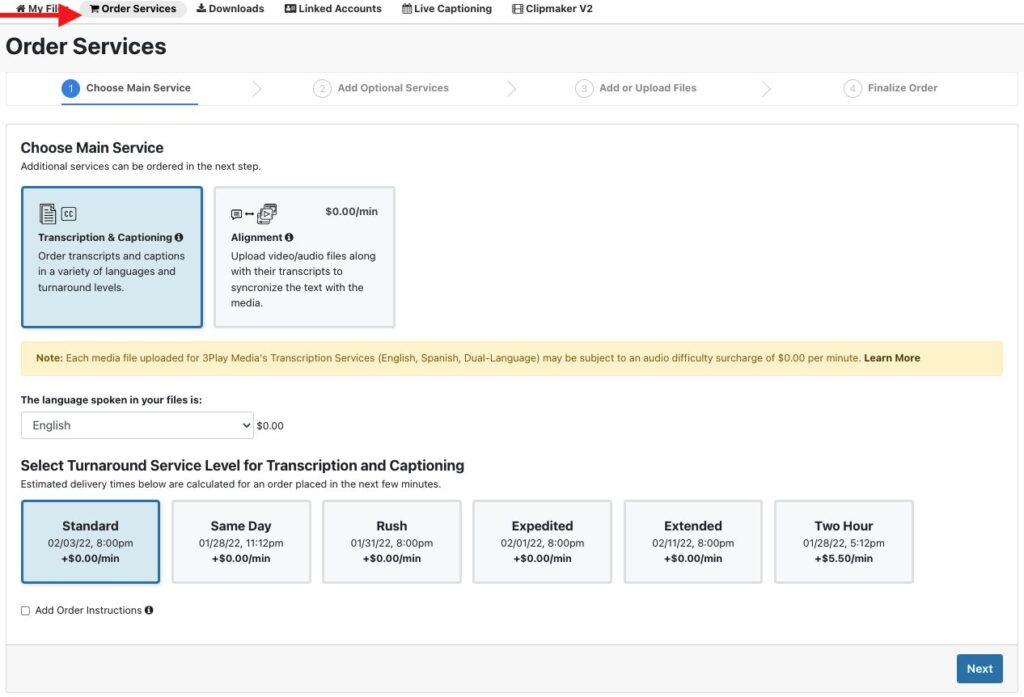
To order audio description, you must first order transcription.
Select Order Services at the top of the screen, and select Transcription & Captioning as your main service. Choose your preferred turnaround time, and click next to continue.
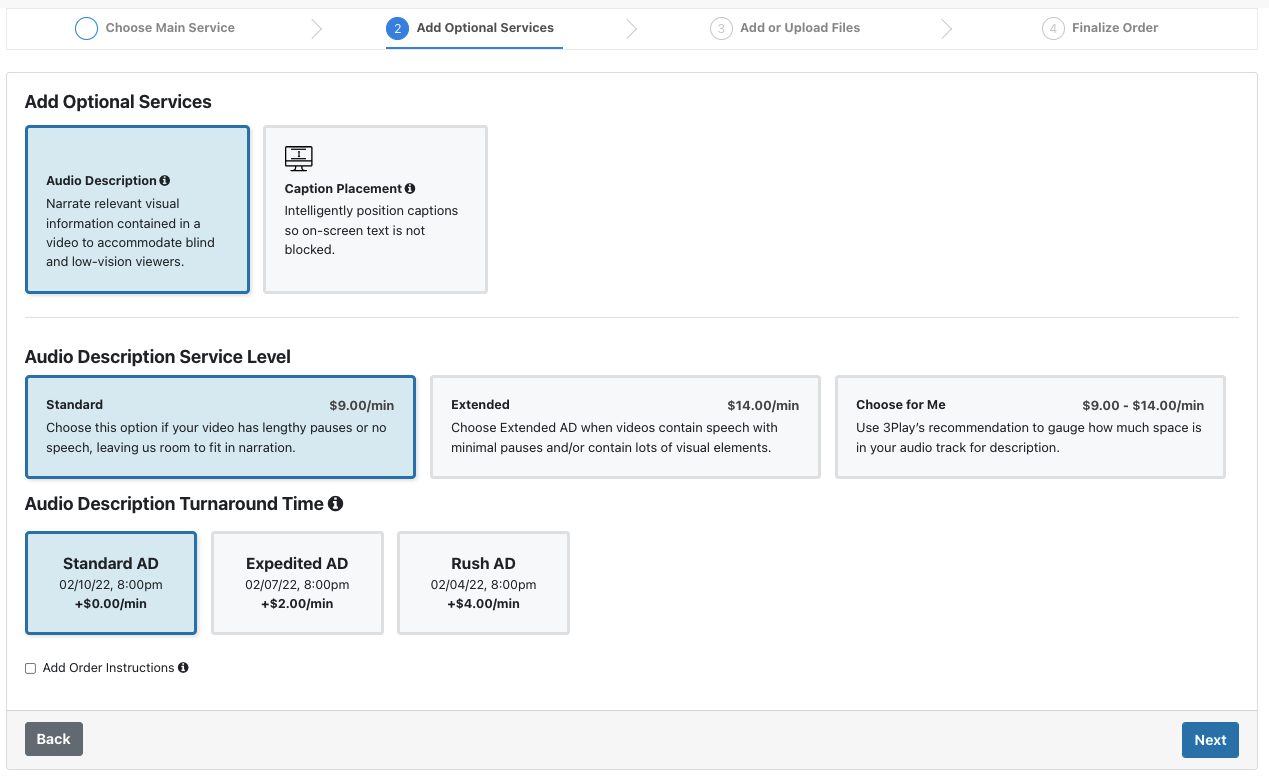
Select Audio Description as an additional service. Choose your preferred service level and turnaround time, then click next.
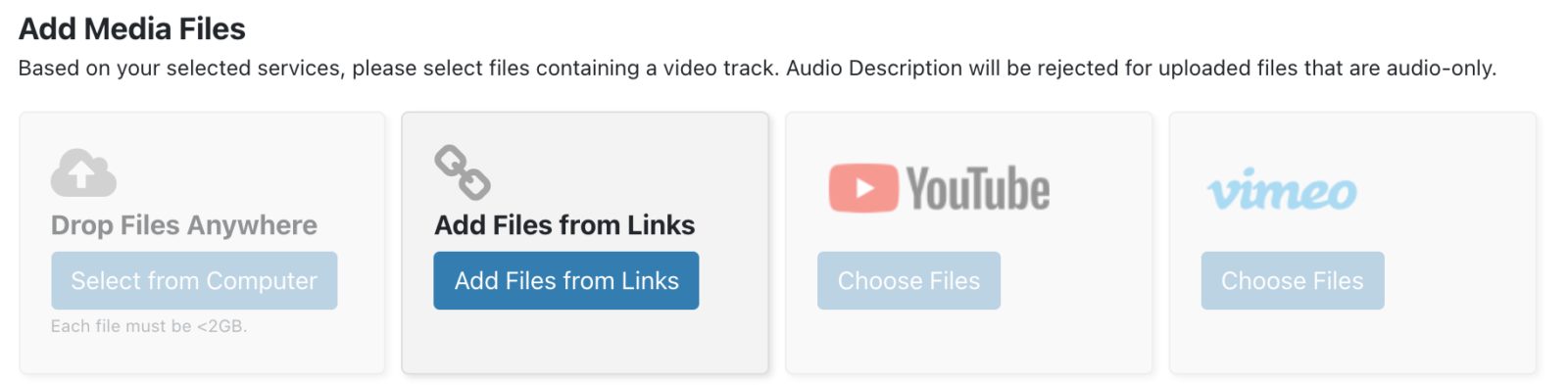
Select the method you are going to use to upload your video. From Links is a great option for YouTube videos, especially those you don’t own. Copy and paste the video URL, click Add Files, then hit next.
Review and submit.
- If you already have a transcribed file from a YouTube video in your account, navigate to the file for which you want audio description, click on the file name, choose Order More when the menu appears on the right of the screen, and choose Audio Description. Follow the prompts to place your order.
- If you already have an audio description file from a YouTube video in your account, continue to Step 2.
Start describing your video content today.
DIY Method
Choosing to create descriptions yourself will take ample time and effort. However, depending on your workflow, this may be a suitable option for your organization.
First, you’ll want to create an audio description transcript. The transcript is a text document that includes both the descriptions of the visual elements and the captions of the original audio.
The audio description transcript will allow blind and low-vision viewers to use their screen readers. Not only will they understand the original spoken audio, but they’ll also be able to get a picture of what’s being visually depicted in the video.
Although this option is better than not having audio description at all, it’s best to have the descriptions in the actual video because it improves the viewer experience. Blindness isn’t all or nothing. In fact, many blind people still have some vision, even if it may be a small percentage. The transcript wouldn’t allow viewers to watch the video and read it simultaneously.
However, you could use the transcript to record the descriptions for your video! When you have the timecodes of the captions, you’ll know precisely where the natural pauses between the dialogue are located. This will make recording the descriptions a breeze since you know exactly where they should go.
If you decide to go with just the transcript instead of recording the audio description, we recommend putting it in the description box below the video or linking it to a separate URL.
The Access Player and the 3Play Plugin
Since not all YouTube creators have access to YouTube’s new audio description feature, 3Play Media’s Access Player and Plugin remain great options for publishing audio description.
The Access Player is 3Play Media’s fully accessible media player that integrates with your existing media player of choice to add enhanced accessibility capabilities.
The Access Player allows the user to search and interact with a time-synced transcript and listen to an Audio Description track. In addition, it provides SEO benefits, making your content more discoverable –so you can reach and connect with your audience to the fullest extent possible.
The 3Play Plugin is still available as we continue to build out the functionality of the Access Player. If you’re looking for extended audio description support, the 3Play Plugin integrates with your player and intelligently pauses the source video content until the description is complete before resuming play.
Using the 3Play Plugin
Once you have a completed Audio Description file from a YouTube video, click on the file you want to publish. Select Publish from the top right window, then Publish Plugin. The plugin menu will open.
Select Audio Description and any other features you want included in your plugin, and choose YouTube as your video player. You will see a preview on the left side of the menu window.
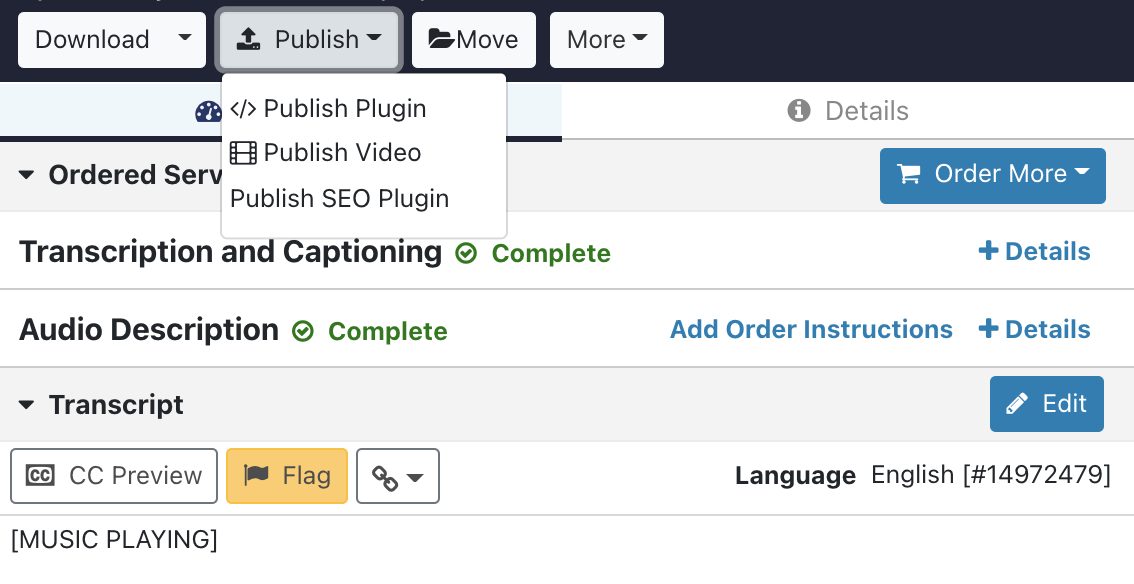
Next, copy the single line embed code provided, and paste it into the bodyof your HTML.

Your video will now appear with the YouTube audio description plugin underneath. You can toggle the audio description on or off and change the volume of the description separately from the volume of your original audio track. Try it out:
Make your YouTube videos accessible! Get started today with audio description:
YouTube Audio Description FAQs
YouTube does not offer built-in audio description creation, but creators can add audio-described versions of their videos or upload separate described audio tracks.
Click the Settings icon, select Audio track, and then select English original.
No, YouTube does not currently auto-generate audio description; it must be created and added by the content owner.
Yes, audio description can be offered in multiple languages by uploading separate audio-described versions or tracks for each language.
This post was originally published on July 23, 2018, by Elisa Lewis and has since been updated for clarity, accuracy, and freshness.
About the author

Share this page
Related Posts
-
 Read more: What Is Pulse by 3Play Media? A Complete Breakdown
- Pulse
What Is Pulse by 3Play Media? A Complete Breakdown
-
 Read more: Which Languages Are Required for EAA Compliance?
- Localization
Which Languages Are Required for EAA Compliance?
-
 Read more: Accessibility Laws for Public Colleges
- Legislation & Compliance
Accessibility Laws for Public Colleges