
Step 1: Navigate to OBS Stream Settings
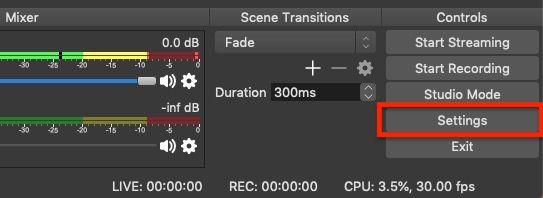
Click the Settings button in the Controls section at the bottom right. Then, click on the Stream tab.
Step 2: Enter Streaming Information in OBS
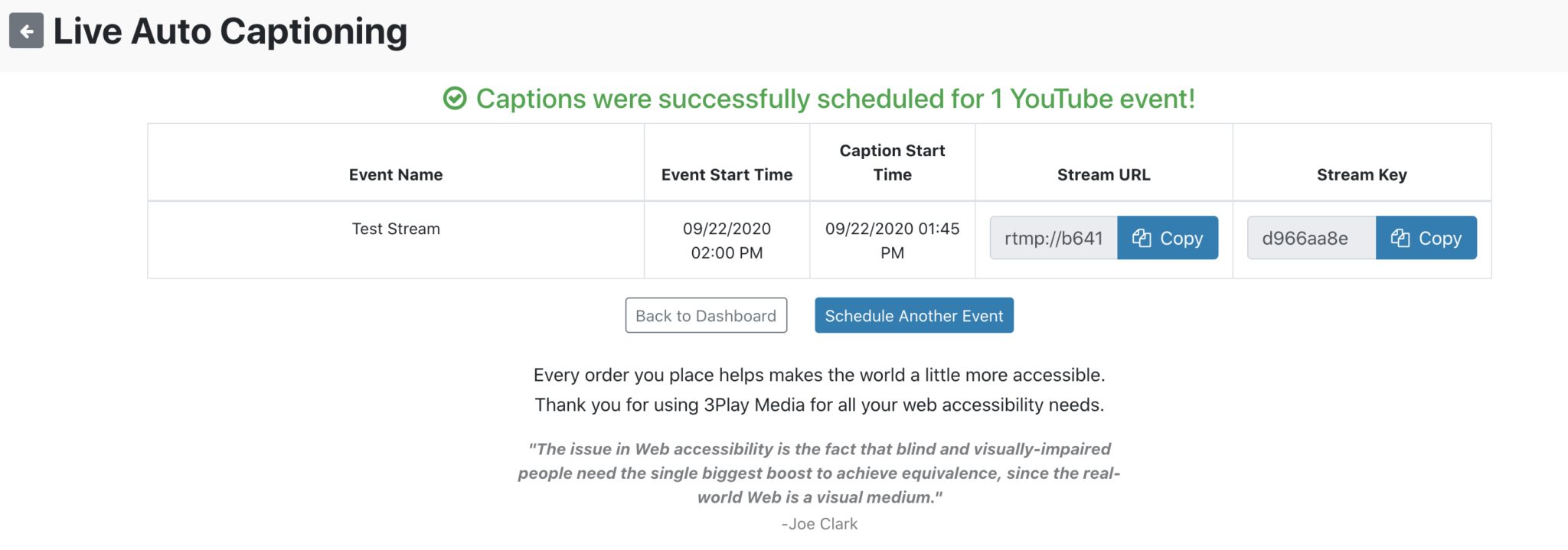
You will be prompted for a Stream URL and Stream Key, which can be found on your Live Event Details page in your 3Play account or the live event success page:
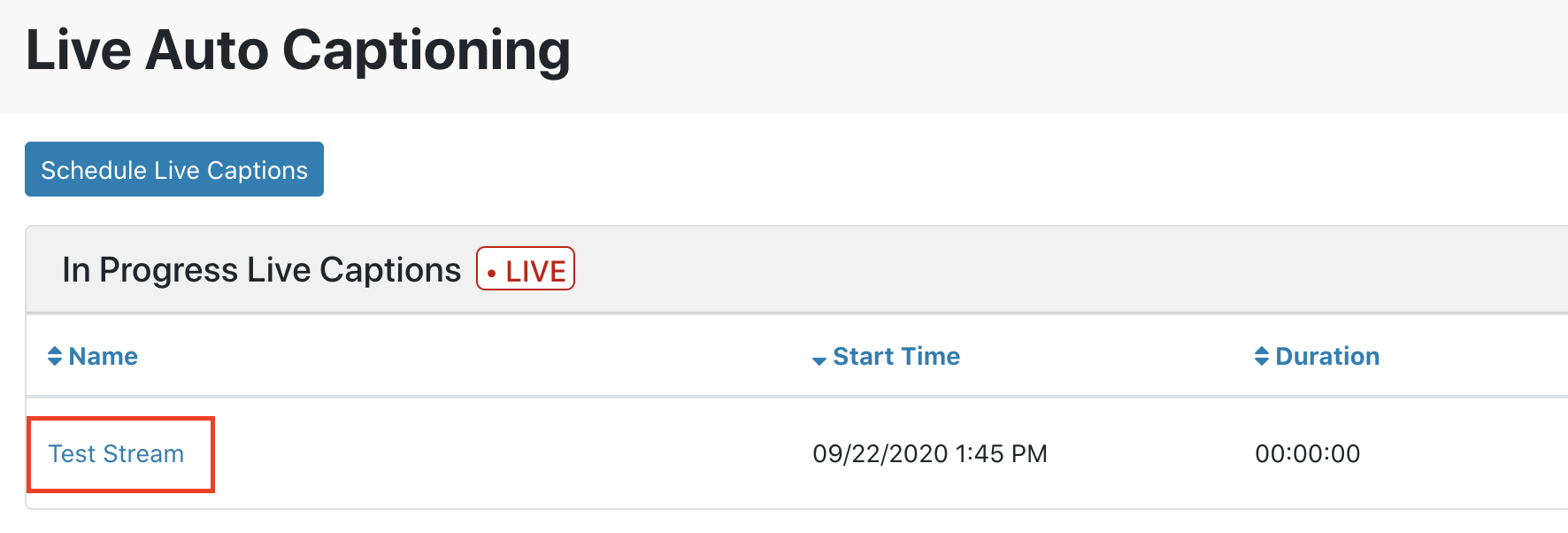
To get to the event details page click on the event title in the Live Auto Captioning Module.
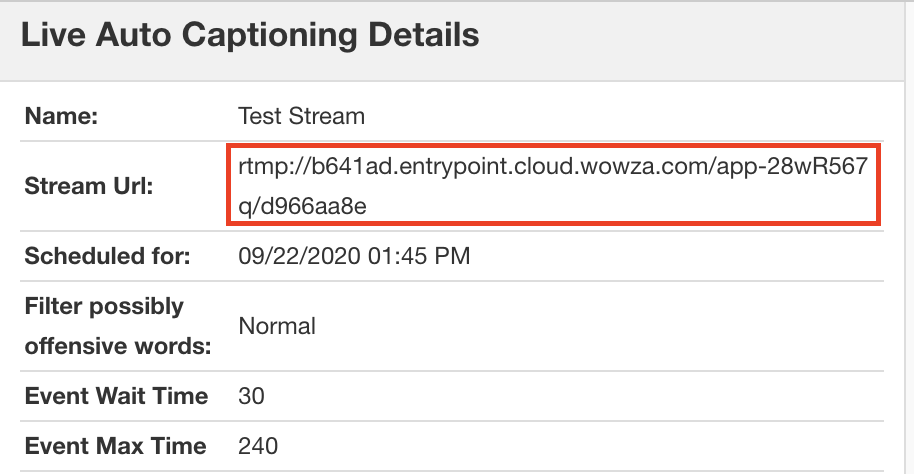
The stream URL and key can be found in conjunction in the field titled Stream URL under Live Auto Captioning Details.
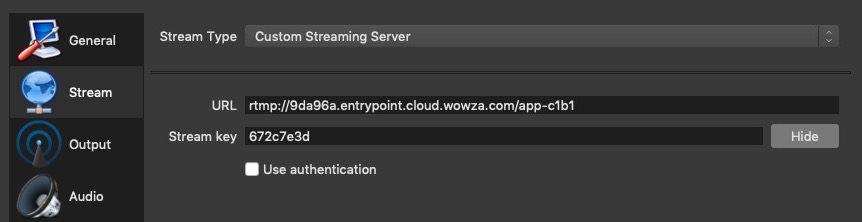
Add the Stream URL from 3Play Media in the URL field within OBS. Add the Stream Key from 3Play Media in the Stream Key field within OBS. Do not enable use authentication.
Step 3: Add Media Source and Begin Streaming
Add a media source by clicking the + sign under Sources and either select a Media Source from the dropdown menu or configure an audio/video input.
When ready, click Start Streaming in the Controls section within the OBS encoder.
Step 4: Go Live within YouTube Studio
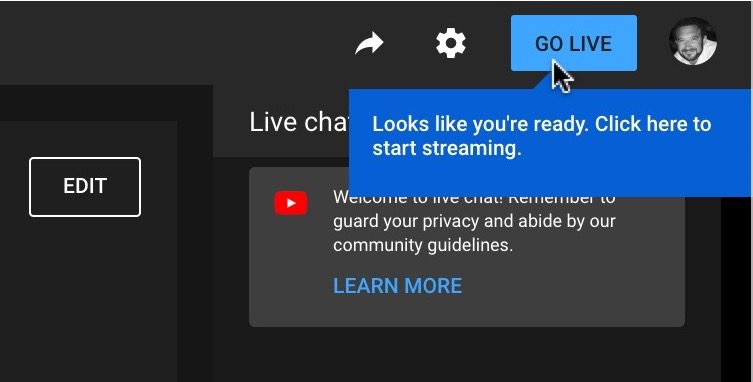
Within YouTube Studio, the content will display shortly after the streaming has started within the encoder.
Click Go Live located in the upper, right-hand corner of the YouTube Studio Page.
Live Auto Captions will display within the YouTube Live Player shortly after the live auto captions’ scheduled start time.
Return to Full YouTube Live Auto Captioning How-To GuidesDownload the YouTube Live Auto Captions Checklist
Ensure your YouTube live streams are accessible to all viewers!
download the checklist