
How to Add Captions and Subtitles to JW Player videos
To display closed captions and subtitles on JW Player videos, you’ll need to update the video embed code on your website. Upload a caption file to your website’s file repository, and make a note of the URL.In your website’s HTML editor, locate the code for the desired video and add a track tag between the playlist brackets. Reference the appropriate caption file URL, and your video will now display a CC symbol among the controls.
REad on JW player support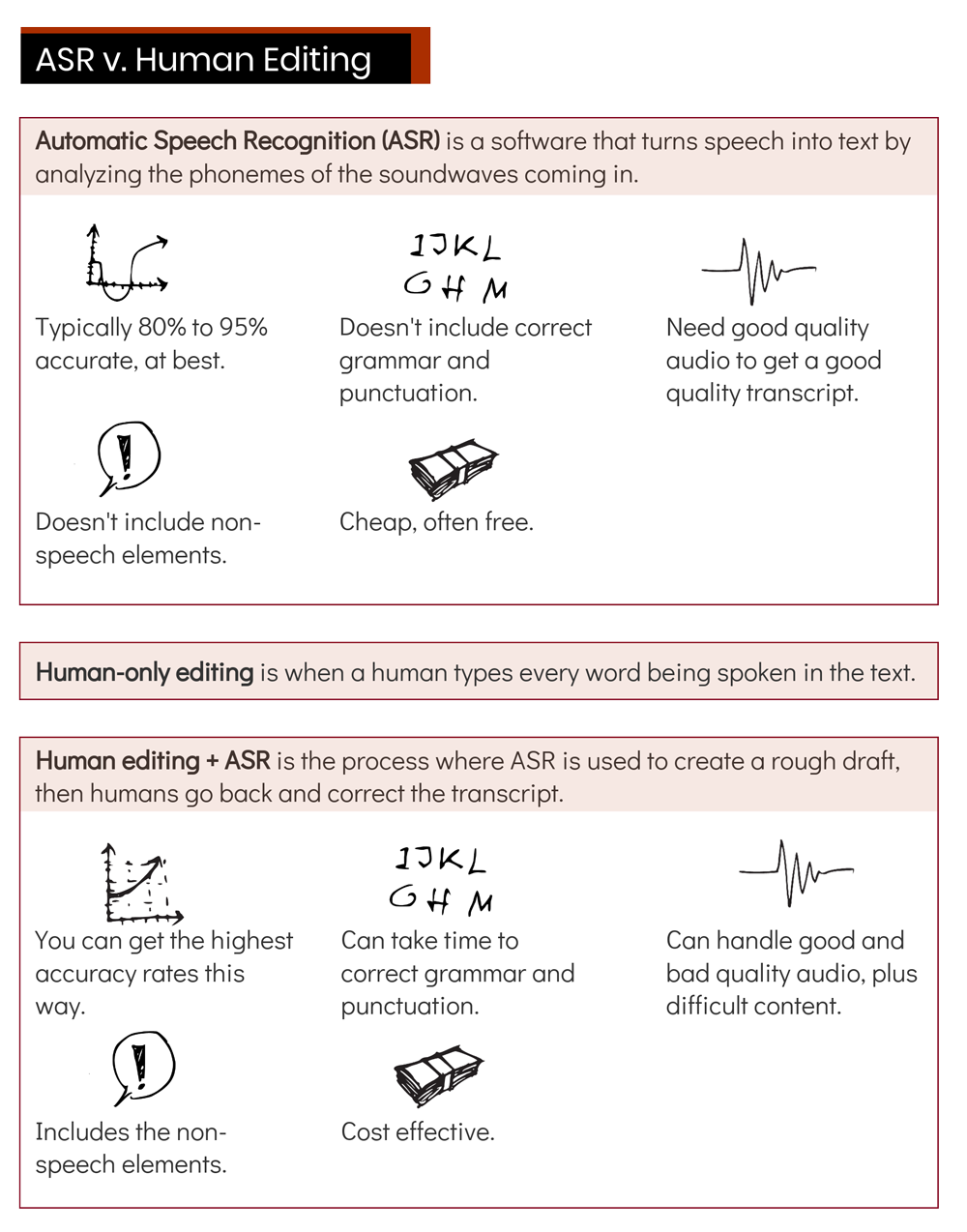
Here’s what it looks like to add captions to JW Player video code:
Why add captions in JW Player?
JW Player offers significant customization options for caption formatting, including:
- font
- text color
- caption size
- font and background opacity
- background color
- styling (i.e. dropshadow, raised, embossed)
What caption format does JW Player require?
Since JW Player is an HTML player, it supports closed captions in WebVTT format. SRT files are also accepted, but WebVTT is preferable for its customization and display options.
learn more about caption formatsHow to use the HTML track element?
The track element can be used to add timed-text data enhancements like subtitles, closed captions, audio description, and chapter markers to your video. Note that multiple track elements can be used simultaneously.
The track tag should include the following elements:
File: the URL of your caption fileLabel: a given title for the captions trackDefault: specifies the track is enabled by defaultKind: optional, but can be used as an identifier if using multiple caption/subtitle tracks